
Oculus Rift
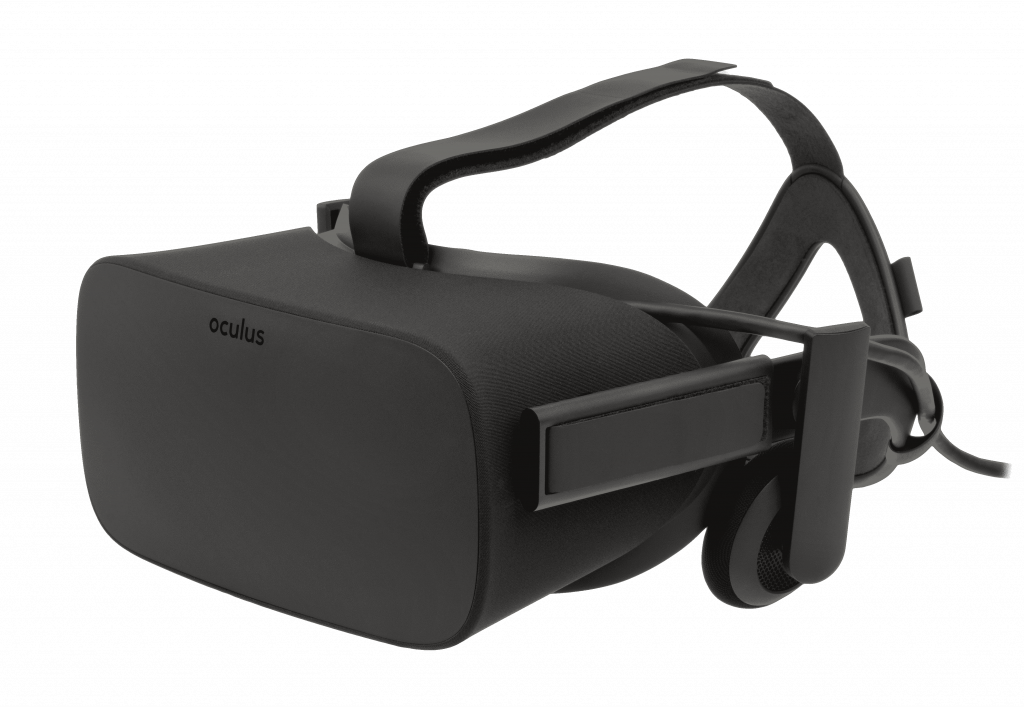
- Setup your Oculus Rift Headset: Make sure your PC is compatible with the Oculus Rift. You can find a list of recommended specs here (https://support.oculus.com/1773584749575567). Download the install package from oculus.com/setup and go through the installation wizard. The install package will automatically detect and configure all the equipment.
- Download and install a VR video player compatible with the Oculus system:
You can use a VR video player compatible with the Oculus of your choice. We recommend the following:
- SteamVR media player (no teledildonics/no interactive videos): http://steamcommunity.com/games/250820/announcements/detail/3021212865824077306
- DeoVR – is a straightforward, high-performance video player for 2D, 3D, flat, 180°and 360° videos.
- Autoplay VR – AutoplayVR is a smart VR video player all on autopilot. Sit back, relax and enjoy the flight!
- Download a video to your PC: We try to optimize our videos for every headset available. Our videos have multiple download versions. Oculus users should select the Oculus – Vive – Windows MR download links.
- Use the DeoVR video player to play the video
Download the video files to the “Movies” folder’ on your device. Open the DeoVR player and browse to the video location. Play the file.
- Enjoy the content
- To watch our videos in Web VR, you have to use Mozilla Firefox Chromium or Supemedium.
- Visit DeviantsVR.com
- Choose a video to watch.
- Play the video in VR mode.
Oculus Quest
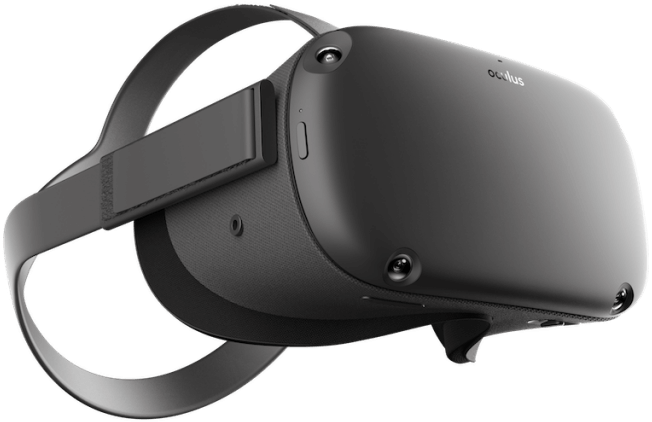
Plug your Oculus Quest into your computer and allow permission in order to transfer files to your Oculus Quest. Do this every time.
In order to play our videos with Oculus Quest, follow the next instructions:
- Choose the video you want
- Find the “Movies” folder and start copying files over the Oculus Quest.
- Reboot the HMD, because it won’t see your media until you do.
- Go to the Storage Manager in Settings. Once there, it recognizes your library of clips, so back it out, and they will show up you can play them from Oculus Gallery. Standard Oculus stuff.
- Double-tap a clip, select [3D] once it starts playing, and select 3D180 Icon.
- ENJOY.
In order to play our videos with Oculus Quest, follow the next instructions:
- Enter in your Oculus Quest.
- Go to DeviantsVR.com on the web browser
- Choose a video and play
- Go to DeviantsVR.com on your PC and download the VR porn video you want.
- Plug your Oculus Quest and connect via USB your device with your PC.
- Accept the message about permissions you will see on the screen of your Oculus Quest.
- Transfer the file from your PC to the Movies folder of your Oculus Quest.
- You can also download some of the VR players available in the Oculus Quest library like Oculus Video, DEO VR, SAMSUNG VR or others
- With your headset on: Quest to Library > Oculus Video / DEOVR / SAMSUNG VR / OTHERS
- Enjoy
Oculus Go
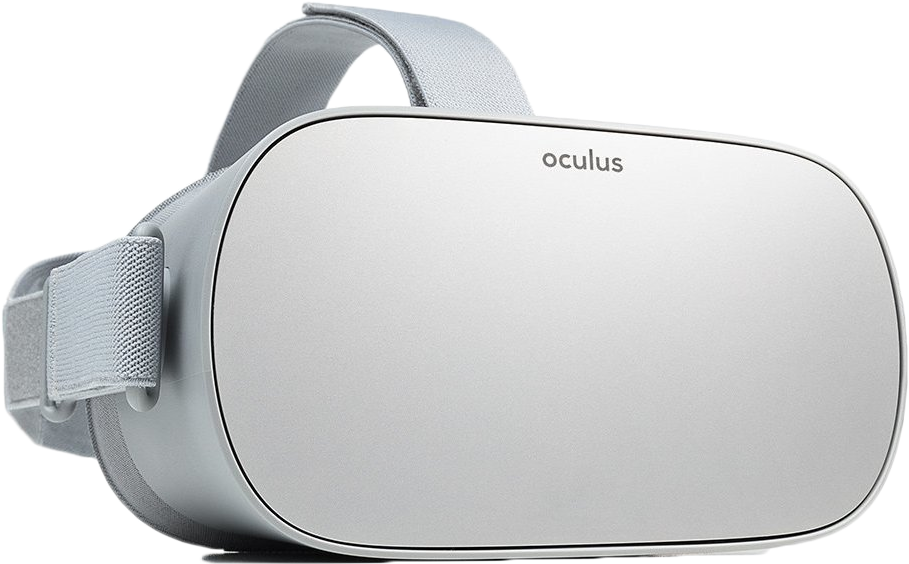
In order to play our videos with Oculus Go, follow the next instructions:
IMPORTANT: Allow permission in order to transfer files to your Oculus Go.
IMPORTANT: Allow permission in order to transfer files to your Oculus Go.
- Enter your Oculus Go
- Go to DeviantsVR.com the web browser
- Choose a video and play
- Go to DeviantsVR.com on your PC and download the VR porn video you want.
- Plug your Oculus Go and connect via USB your device with your PC.
- Accept the message about permissions you will see on the screen of your Oculus Go.
- Transfer the file from your PC to the Movies folder of your Oculus Go.
- You can also download some of the VR players available in the Oculus Go library like Oculus Video, DEO VR, SAMSUNG VR or others.
- With your headset on: go to Library > Oculus Video / DEOVR / SAMSUNG VR / OTHERS > My videos.
- Play and enjoy!
HTC VIVE
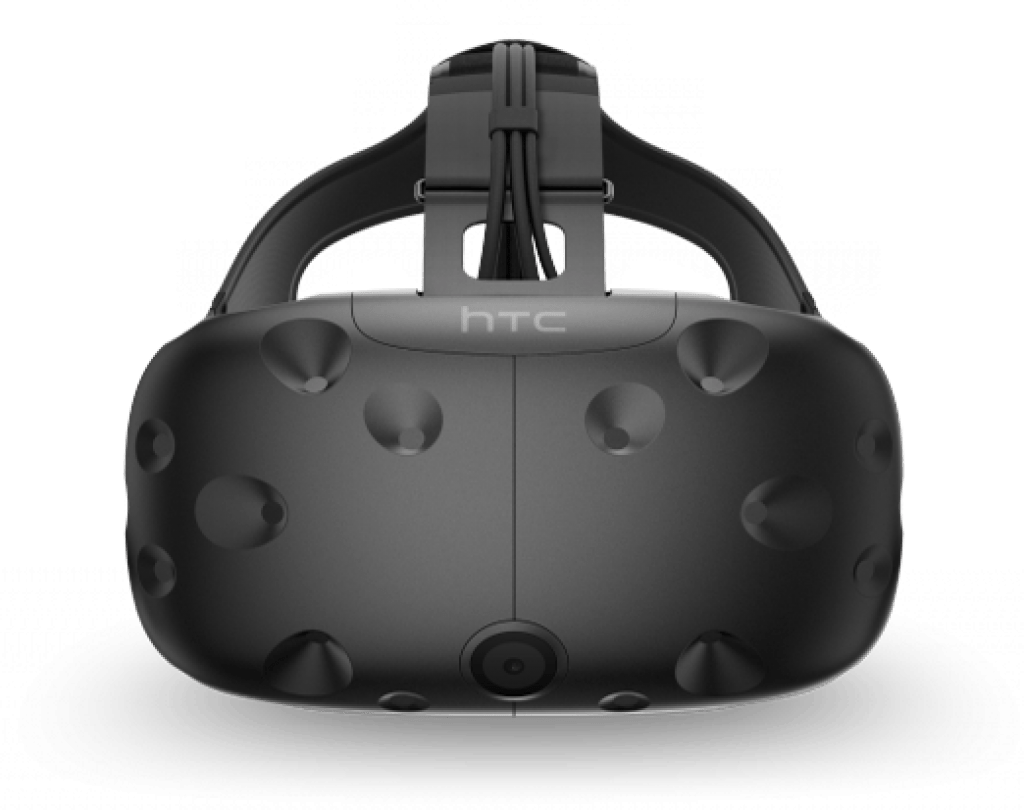
In order to play our videos with Oculus Go, follow the next instructions:
IMPORTANT: Allow permission in order to transfer files to your Oculus Go.
IMPORTANT: Allow permission in order to transfer files to your Oculus Go.
- To watch our videos in Web VR, you have to use Mozilla Firefox Chromium or Supemedium web browsers.
- Visit DeviantsVR.com.
- Choose a video to watch.
- Play the video in VR mode.
Make sure your PC is compatible with the HTC Vive. You can find a list of recommended specs here:
(https://www.vive.com/us/support/vive/category_howto/what-are-the-system-requirements.html).
Download the install package from https://www.vive.com/setup/ and go through the installation wizard. The install package will automatically detect and configure all the equipment.
Download and install a VR video player compatible with the HTC Vive:
You can use a VR video player compatible with Vive of your choice. We recommend the following:- DeoVR – is a straightforward, high-performance video player for 2D, 3D, flat, 180°and 360° videos.
- Autoplay VR – AutoplayVR is a smart VR video player all on autopilot. Sit back, relax and enjoy the flight!
- OPTION Vive Video
You can also use Vive Video to watch our videos. Here you can find the instructions:
- Download one of our videos.
- Open Vive Port/ Steam VR and VIVE Video
- Download the official VIVE Video VR player.
- Launch VIVE Video and use it to open the video you downloaded.
- Use the file management and navigation to select the directory your video is saved to.
- Click the video thumbnail and enjoy. VIVE Video detects video format for optimal play (180 SBS / 3D), you can adjust your settings for 3D and format at any time.
- Download a video to your PC:
We try to optimize our videos for every headset available. Our videos have multiple download versions. Vive users should select the Oculus – Vive – Windows MR download links.
- Enjoy the content
Samsung Gear VR
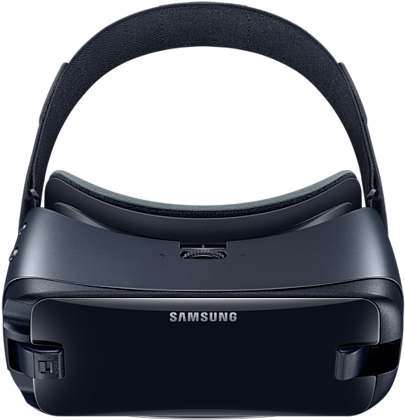
Using Samsung Internet
- Select “Samsung Internet” from your Oculus Home menu
- Go to DeviantsVR.com
- Log into your account
- Select a VR video to view
- Enjoy the content
Using Oculus Browser
- Select “Oculus Browser” from your Oculus Home menu
- Go to DeviantsVR.com
- Log into your accountSelect a VR video to view
- Enjoy the content
- Go to DeviantsVR.com
- Log into your account
- Download desired video
- Transfer the video to your device
- Watch the video using the video player (We recommend DEO VR, SKYBOX VR and OCULUS Video)
Playstation VR / WATCHVR

- Turn on your PlayStation console.
- Download and install the Littlstar VR Cinema app for PSVR on your PlayStation.
- On the PC, prepare a flash drive (USB Pendrive) of at least 16GB with exFAT or FAT32 format.
- Inside the USB create a folder called LITTLSTAR.
- Download any DeviantsVR.com video from PSVR 180 or 360 and transfer them to the LITTLSTAR folder on the USB.
- Inside the USB, rename and add at the end of each file: _180_sbs.mp4 (if it is a 180-degree video) or: _360_sbs.mp4 (if it is in 360 degrees) or: _360_ou.mp4 (if it is in 3D). For it to work, it should look like this: “myivideoporno_180_sbs.mp4”.
- Take the USB out of the PC and connect it to the PS4’s USB port. Turn on the system and open the Littlstar VR Cinema app with your PSVR glasses, navigate to the library on the right, choose a video and enjoy.
Windows Mixed Reality
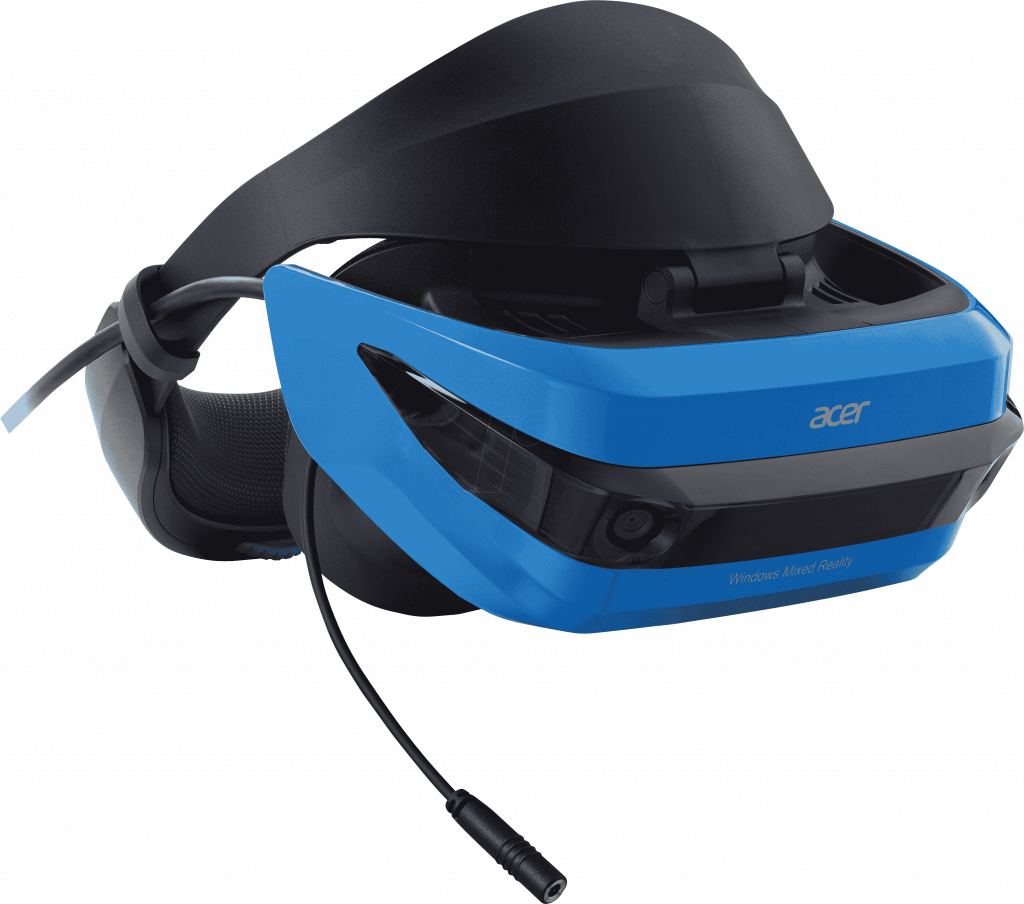
- Download videos you wish to watch from DeviantsVR.com
- From your mixed reality home, press the Windows button on your controller to launch the Start menu.
- Select File Explorer (you may need to press All Apps).
- Select the video you want to play.
- In the popup, select Movies & TV to open the video.